
Creating an Ergonomic Home Office Setup
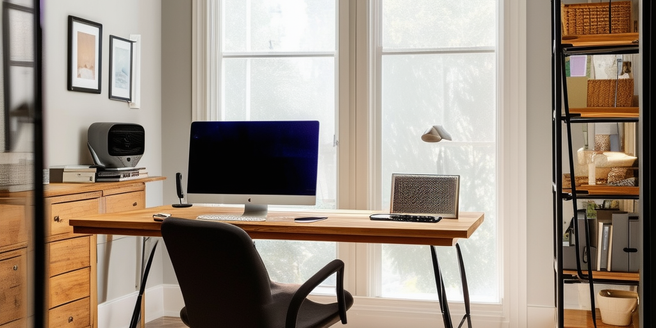
Creating an ergonomic home office setup begins with choosing the right furniture and equipment. Start with a stable desk that allows for proper arrangement of monitors, keyboard, and other tools. Ensure your chair supports your lower back, and your feet rest flat on the ground or a footrest. Arrange your monitor at eye level to reduce neck strain. Good lighting is essential to minimize eye strain, so position your desk near a window if possible, or use task lighting while avoiding glare. Finally, keep frequently used items within arm’s reach to reduce repetitive movements.
Choosing the Right Chair for Comfort
The right chair is crucial for maintaining postural health during long hours of work. Look for a chair that offers adjustable height, backrest, and armrests to customize to your body’s needs. An ergonomic design can significantly enhance your overall comfort. Ensure your feet are flat on the ground or a footrest. The chair should provide lumbar support for your lower back to prevent slouching. The seat cushion should be comfortable and not restrict circulation in your thighs. Also, choose a chair with a swivel base to allow easy movement around your workspace without straining.
Proper Desk Height and Posture Tips
Proper desk height is key to maintaining good posture and reducing strain. Your desk should allow you to place your monitor at eye level, reducing the need to tilt your head. Your keyboard and mouse should be positioned so that your elbows are at a 90-degree angle to prevent wrist strain. Sit back in your chair with your lower back supported, and ensure that your feet are flat on the ground or on a footrest. Avoid crossing your legs, as it can lead to poor circulation. Regularly check your posture to prevent slumping or slouching.
Optimal Monitor Positioning and Eye Strain Reduction
Positioning your monitor correctly is vital for reducing eye strain and maintaining good posture. Place the monitor directly in front of you at arm’s length with the top of the screen at or slightly below eye level. This position helps maintain a neutral neck position. Adjust your chair height so that your feet are flat on the floor, providing additional support for good posture. Reduce glare on your screen by adjusting lighting and using an anti-glare screen if necessary. Take regular breaks using the 20-20-20 rule: every 20 minutes, look at something 20 feet away for at least 20 seconds to reduce eye fatigue.
Keyboard and Mouse Placement for Maximum Efficiency
Effective keyboard and mouse placement can significantly enhance your working efficiency and comfort. Position your keyboard directly in front of you with a slight incline to keep your wrists in a neutral position. Your mouse should be placed within easy reach, ideally at the same height as the keyboard to prevent unnecessary stretching. Consider using an ergonomic keyboard and mouse to reduce strain on your hands and wrists. Additionally, make sure your workstation is set up to promote good posture. Regularly switch hands while using the mouse and take breaks to stretch your fingers and wrists.
Effective Stretching and Movement Breaks Techniques
Incorporating regular stretching and movement breaks into your routine is essential for maintaining comfort and productivity. It’s also beneficial to set reminders on your phone or computer to avoid prolonged periods of inactivity. Stand up every 30 minutes to stretch your back, shoulders, and legs. Simple exercises like shoulder rolls, neck stretches, and wrist flexor stretches can prevent muscle stiffness. Consider using a standing desk for a portion of the day to vary your posture. Walking around for a few minutes can greatly improve circulation and reduce fatigue. Practicing mindfulness or deep-breathing exercises during breaks can also help in reducing stress and maintaining focus.